
- Visit the RBT Resources site in Sharepoint.
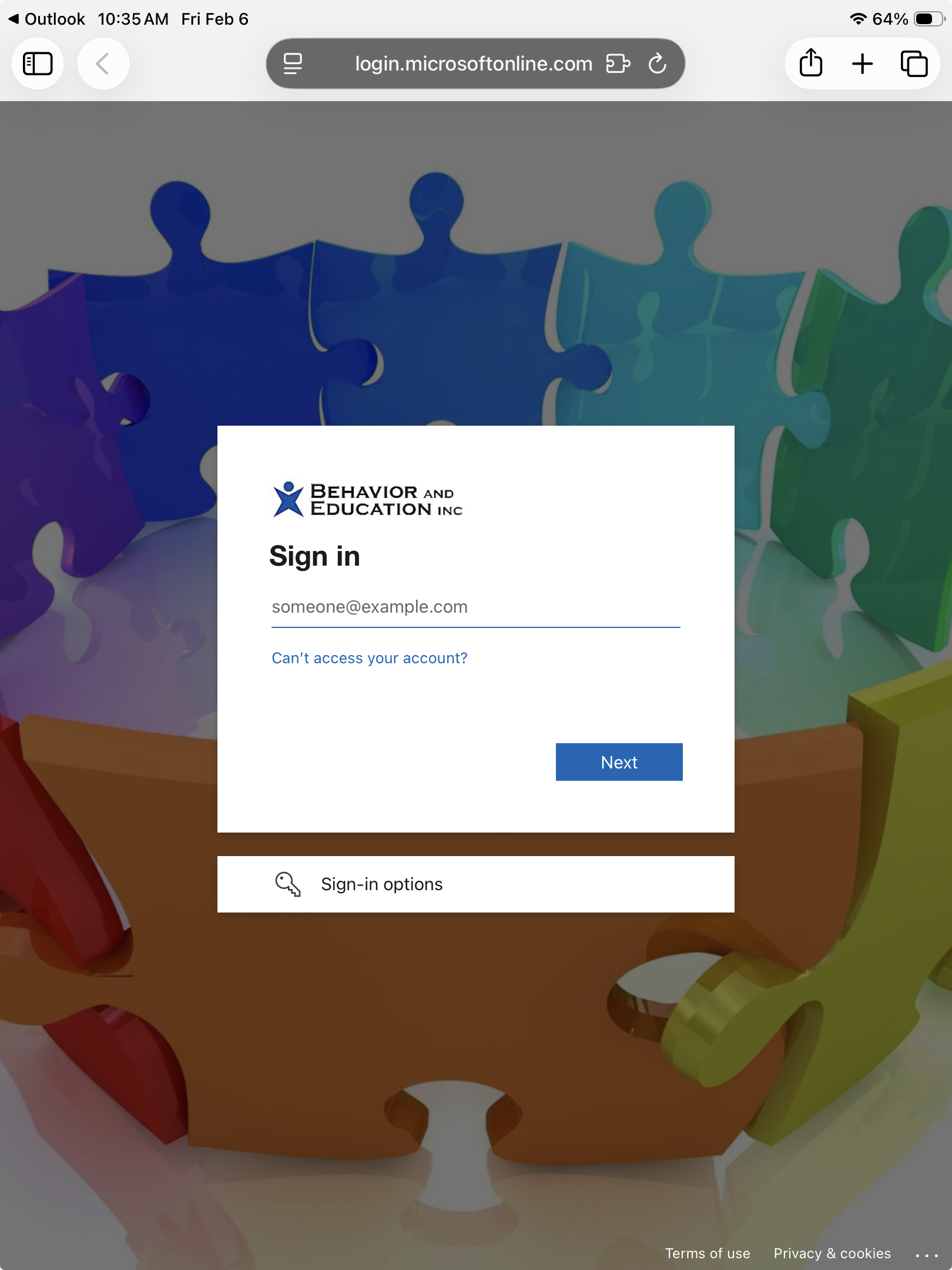
- When prompted, log in using your work Microsoft account (Same credentials as Outlook).
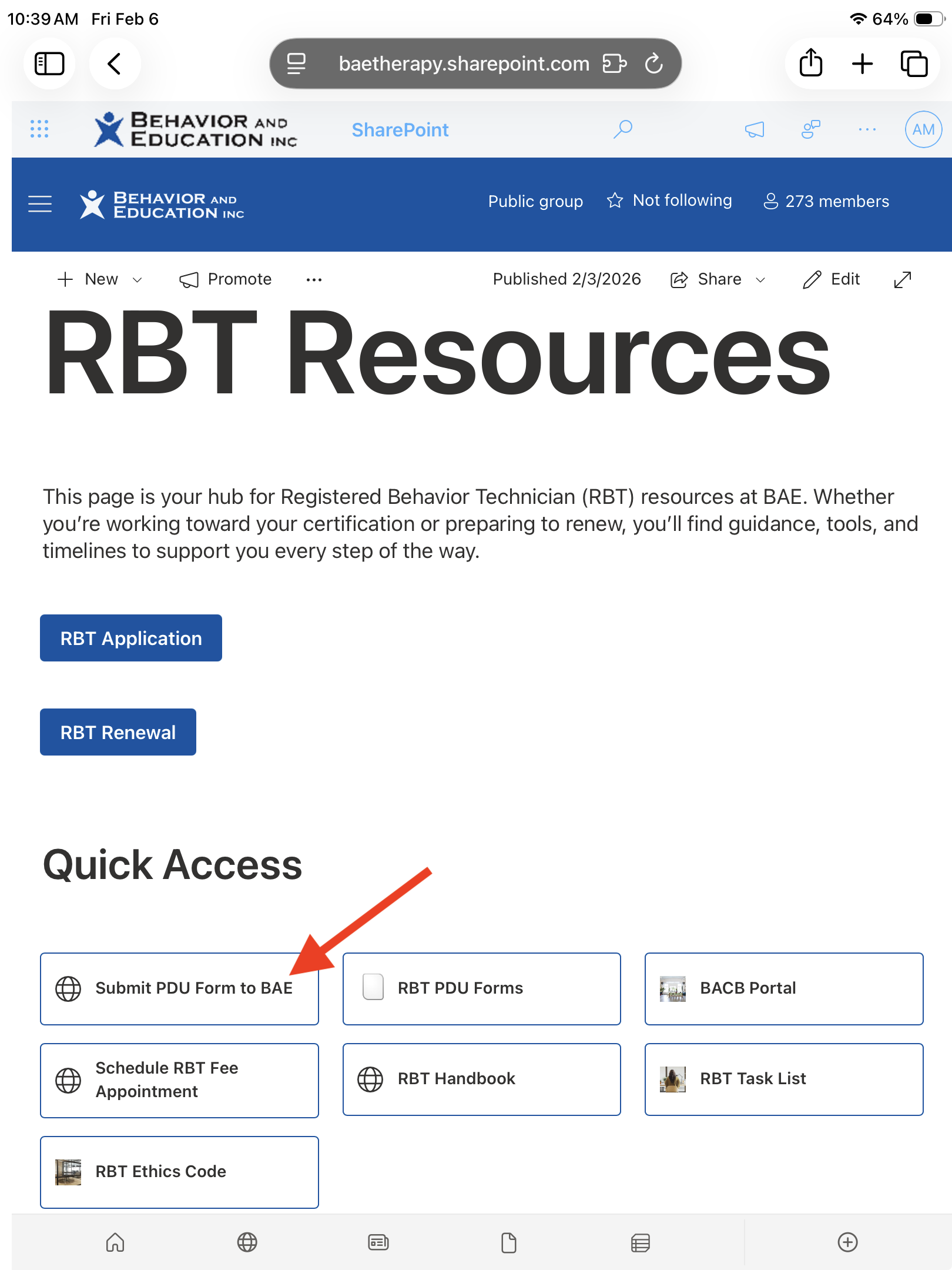
- Once logged in, under Quick Access, select Submit PDU Form to BAE.
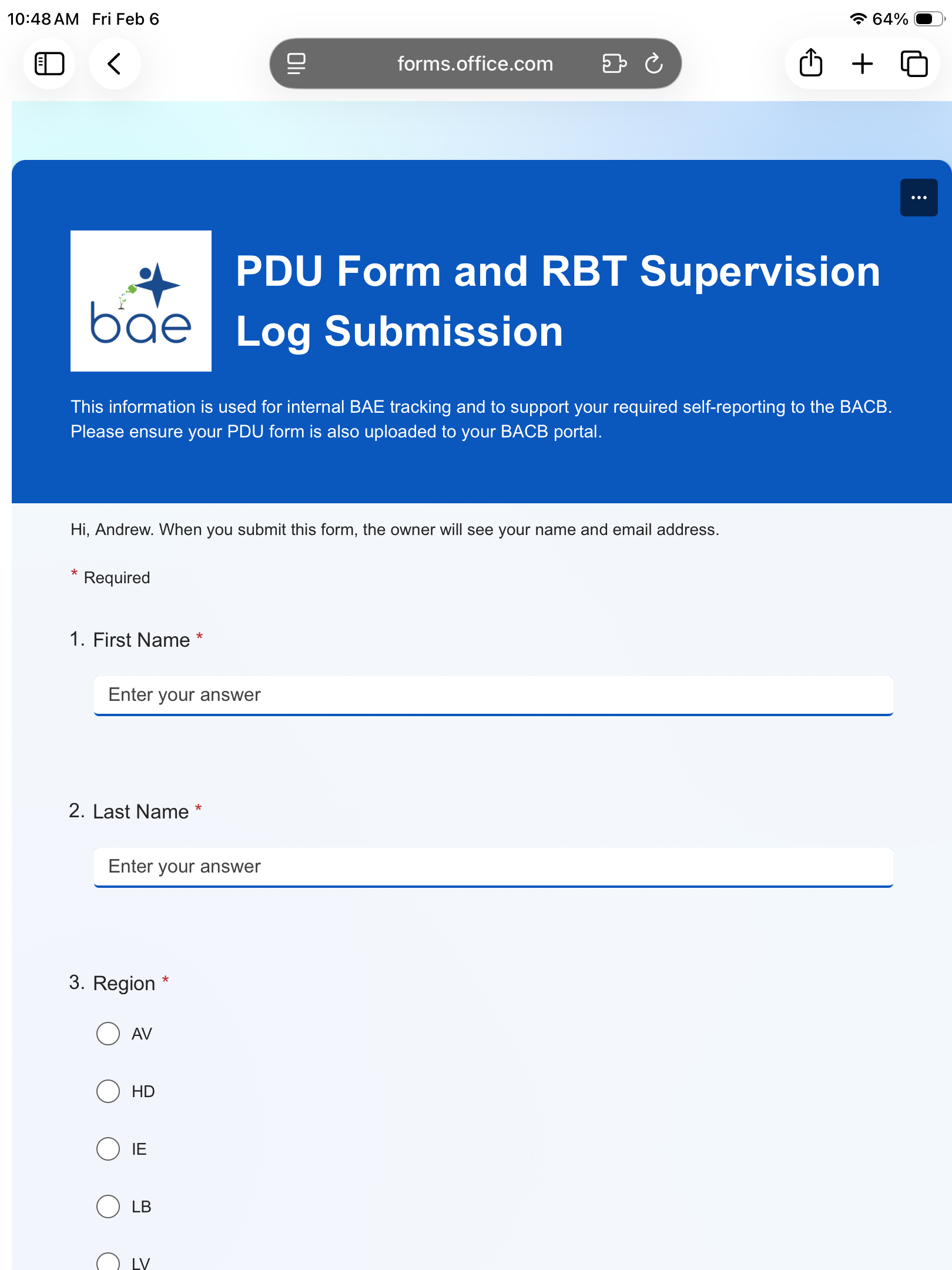
- A new form should load. Please fill out the required information.
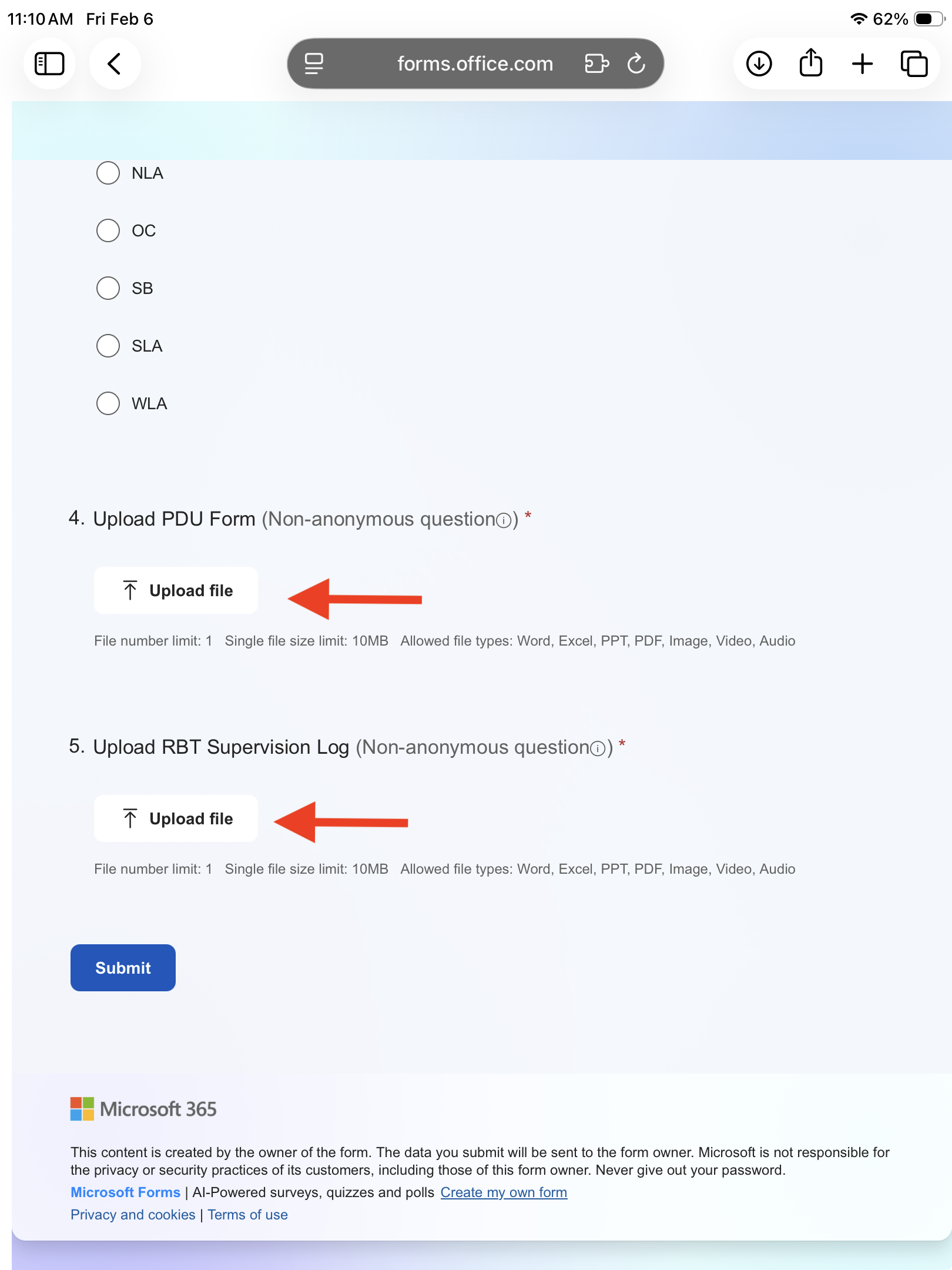
- Once the information has been filled out, please select Upload File for both PDU Form and RBT Supervision Log.
- If you are uploading a saved file already on your device:
- Select Upload File
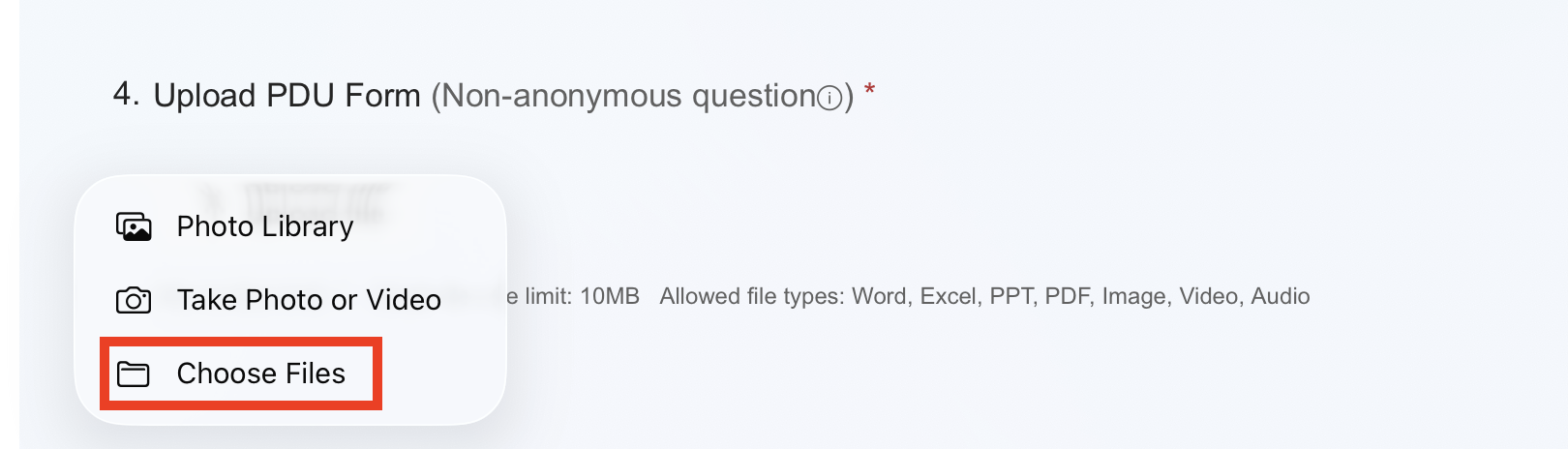
- Select Choose Files
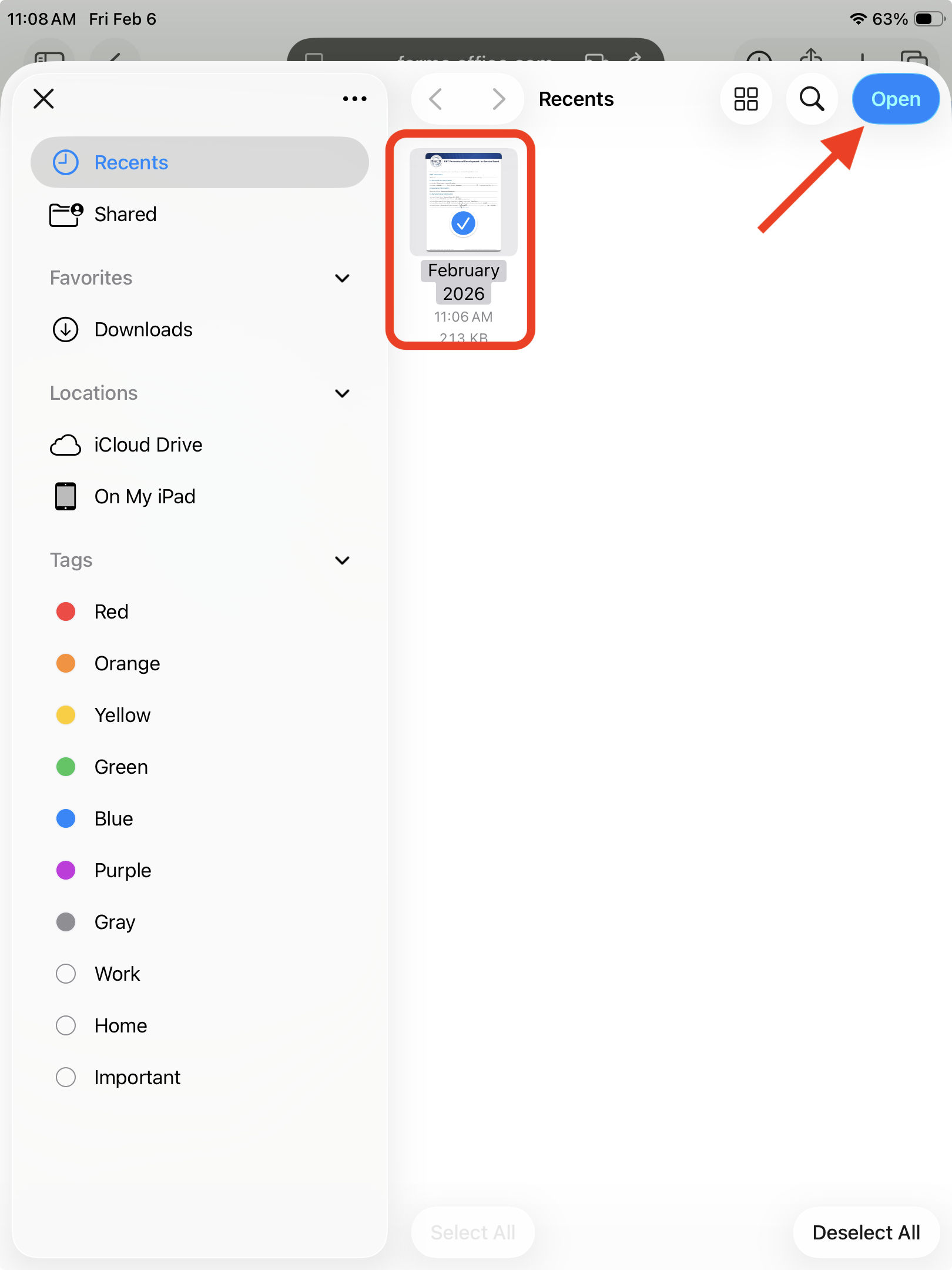
- A new window should pop up showing you your Recent files. Choose the required file and select Open.
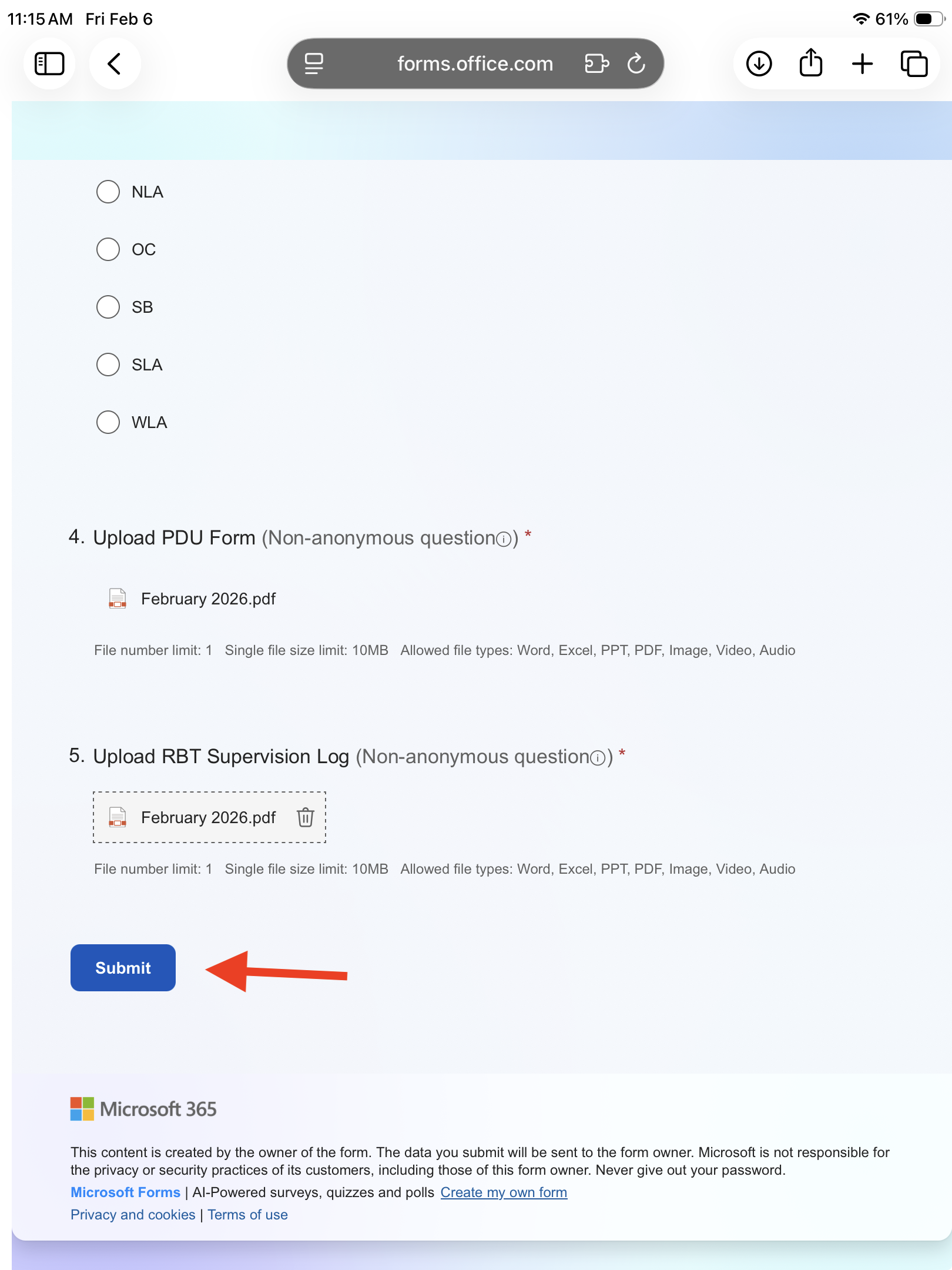
- Once both files have been uploaded, select Submit.
- Select Upload File
- If you have a physical copy of your forms:
- Select Upload File
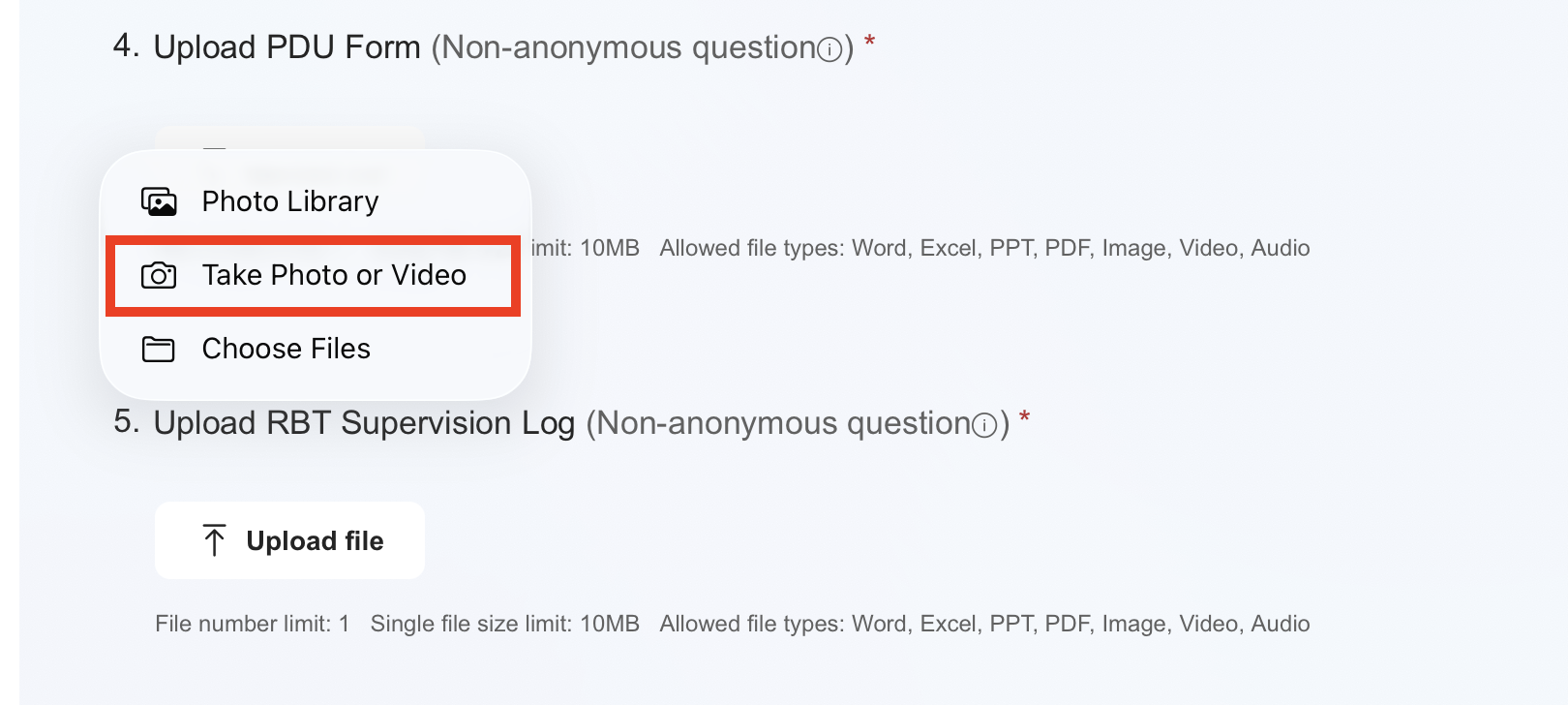
- Select Take Photo or Video.
- Take a photo of the physical document and then select Use Photo at the bottom right corner of the screen.

- Do the same for both PDU Forms and RBT Supervision Log.
- Once both files have been uploaded, select Submit.
- Select Upload File
- If you are uploading a saved file already on your device:
Please reach out to Support@baetherapy.com if you have any technical issues.