
- Visit the RBT Resources site in Sharepoint.
- When prompted, log in using your work Microsoft account (Same credentials as Outlook).
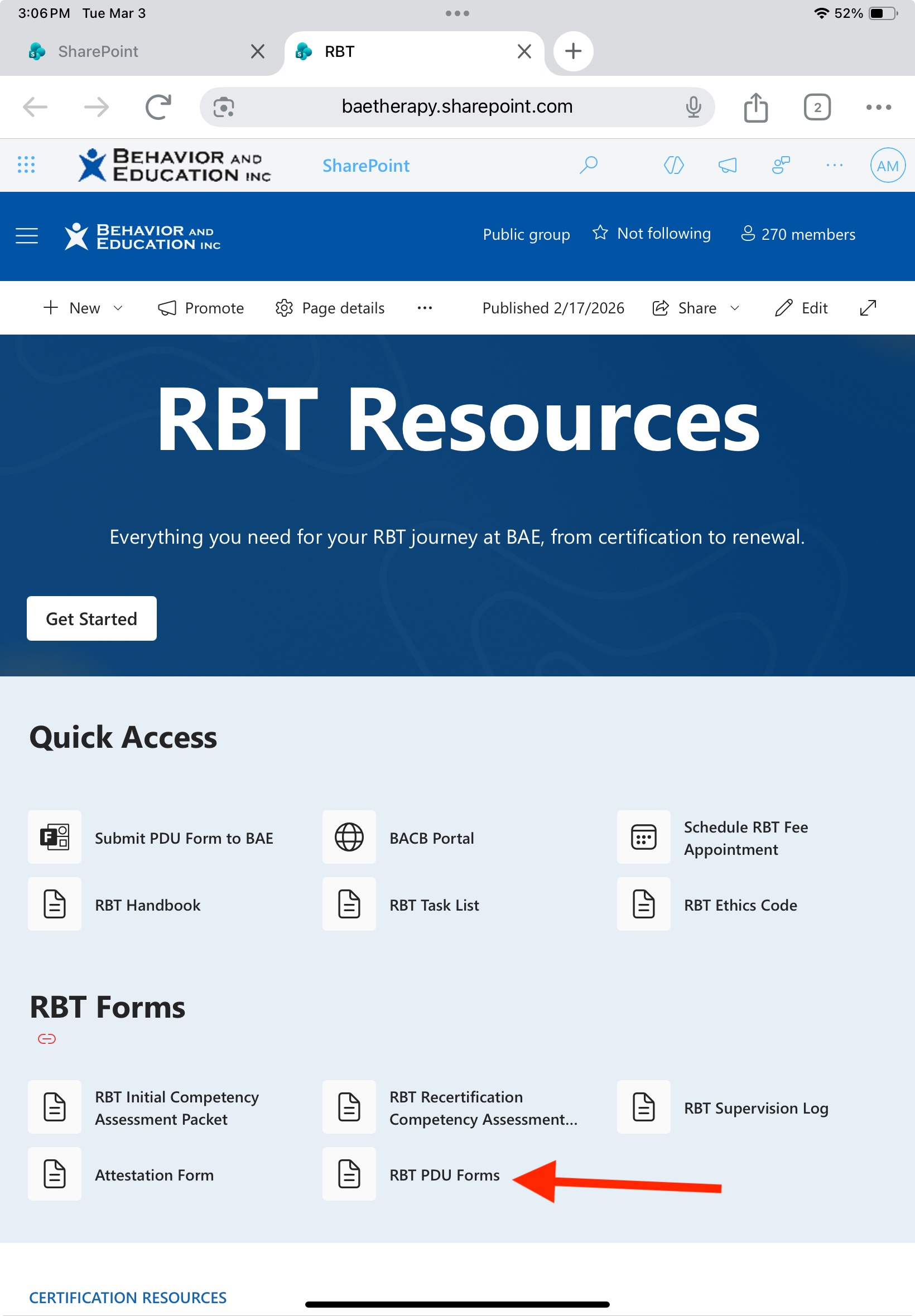
- Once logged in, under RBT Forms, select RBT PDU Forms.
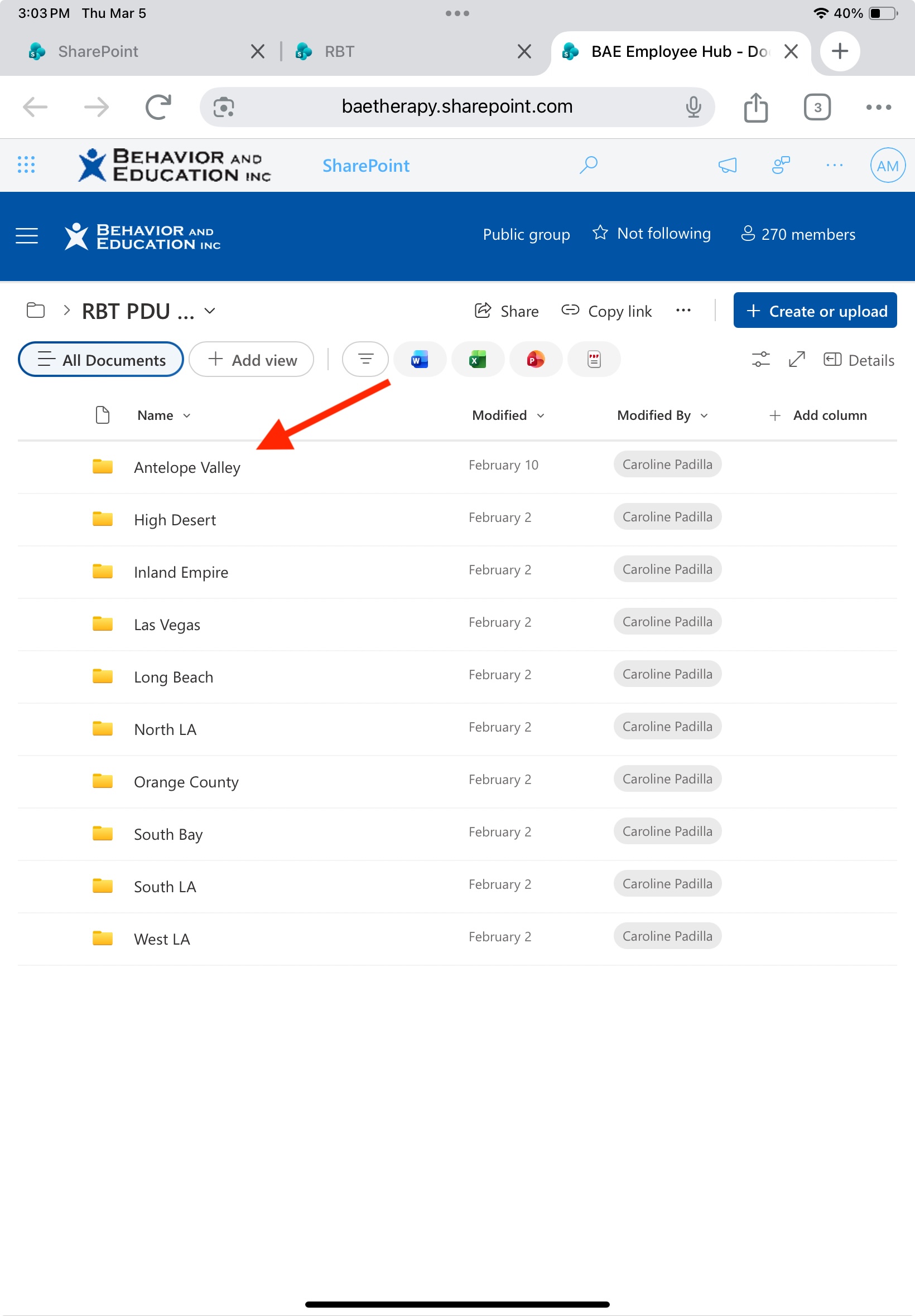
- Select the folder from your division. (For example: Antelope Valley)
- Select the correct file.
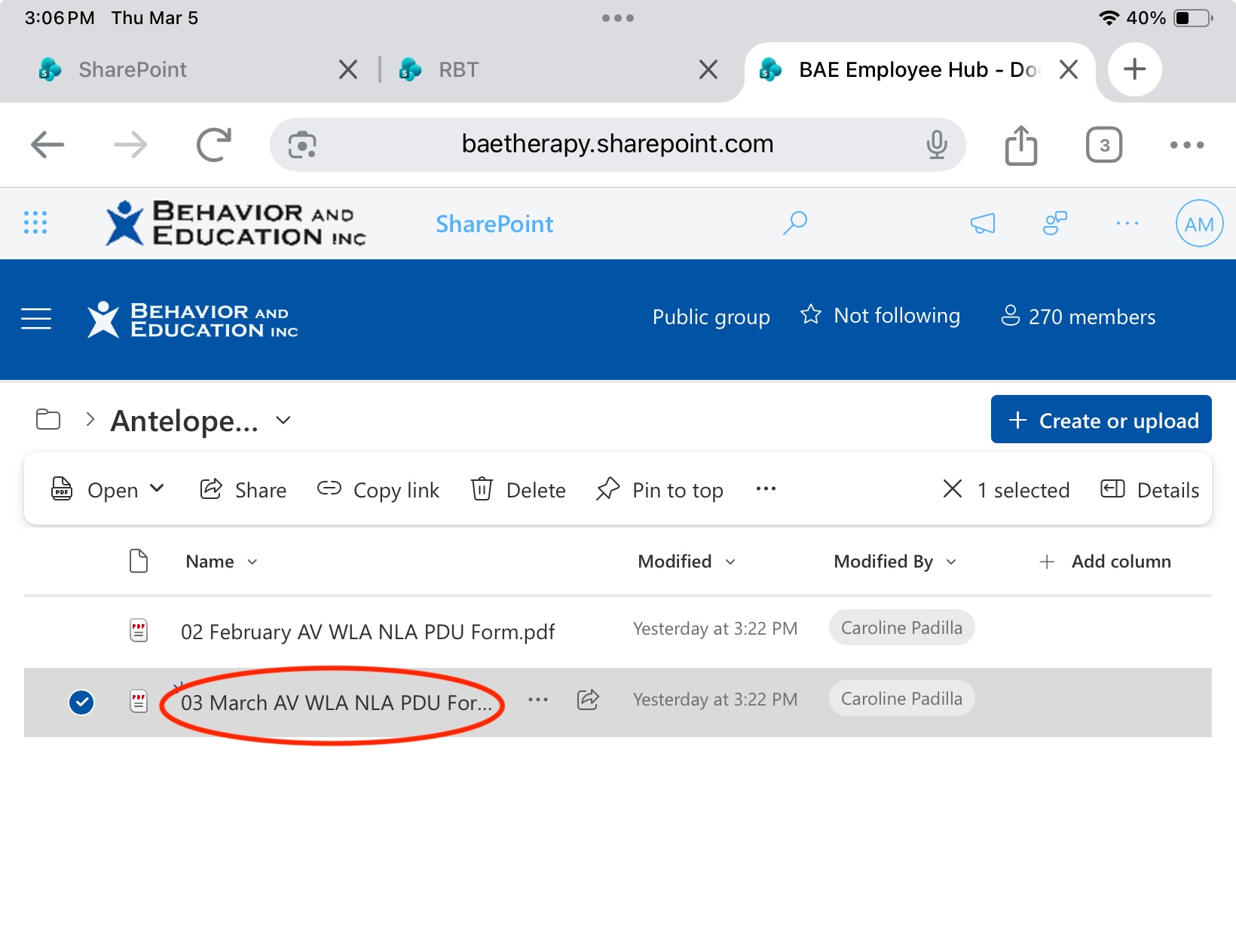
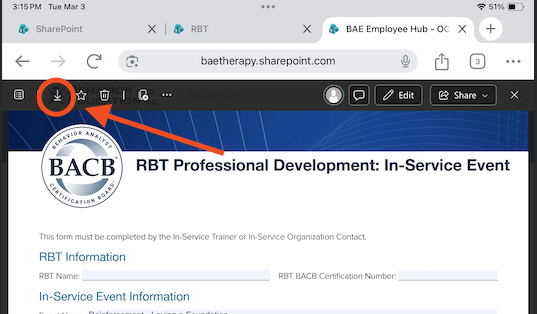
- Download the PDF file by selecting the file name and pressing the "Download" option on the form that loads. Depending on the browser you are using, there should be a pop up confirming your download.
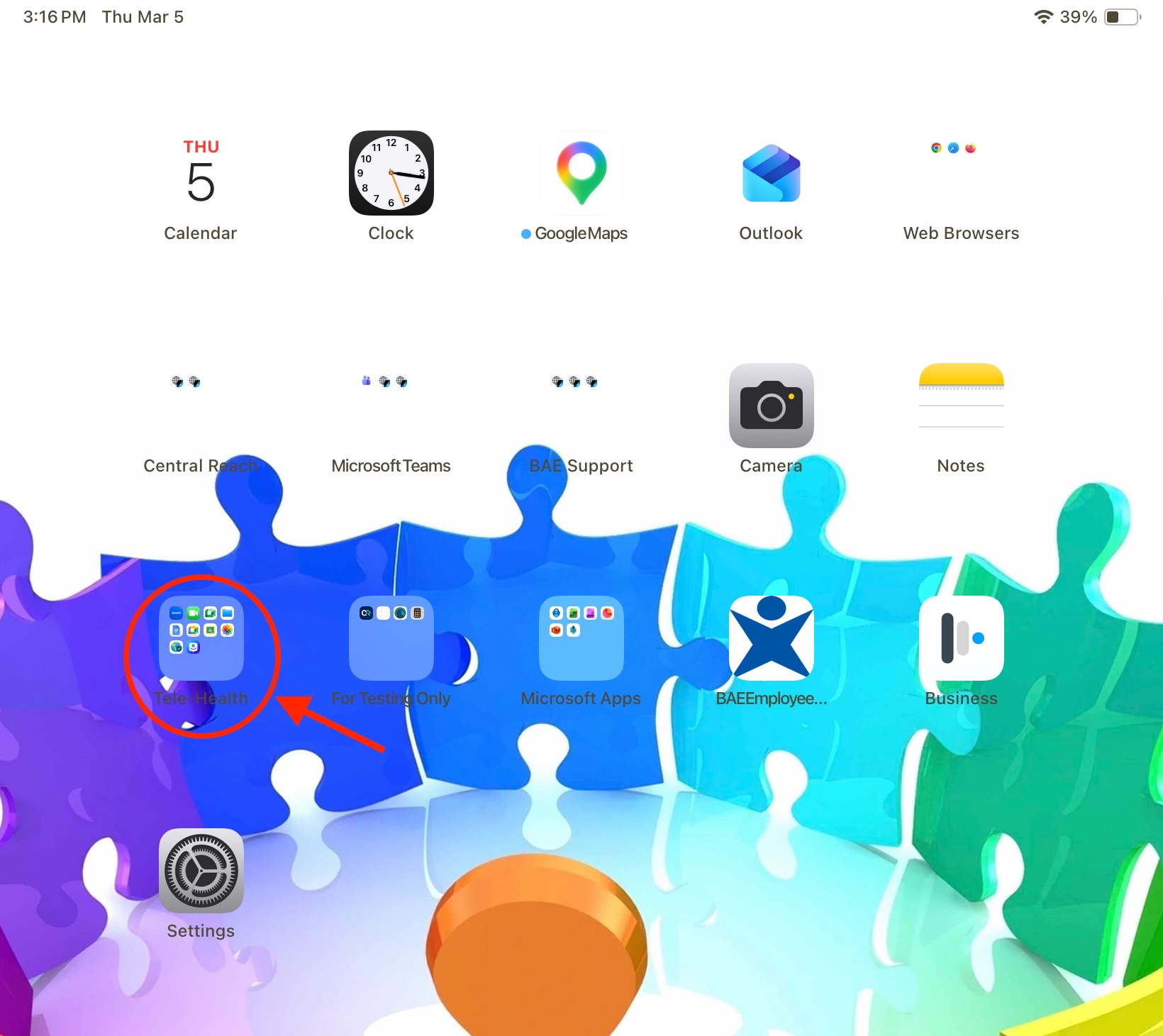
- Go to the Home Screen of your assigned work iPad and open the Tele-Health folder.
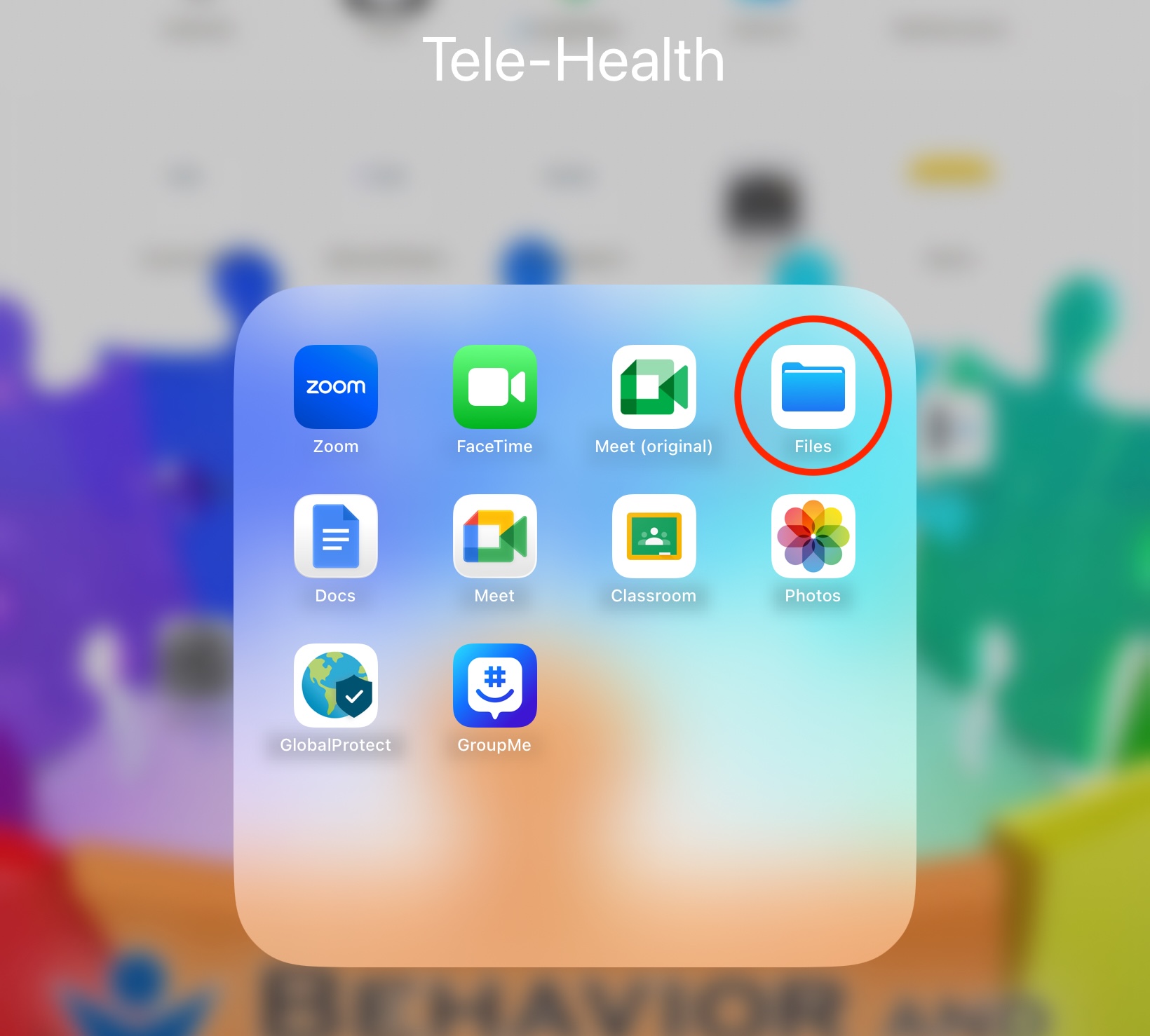
- Select Files
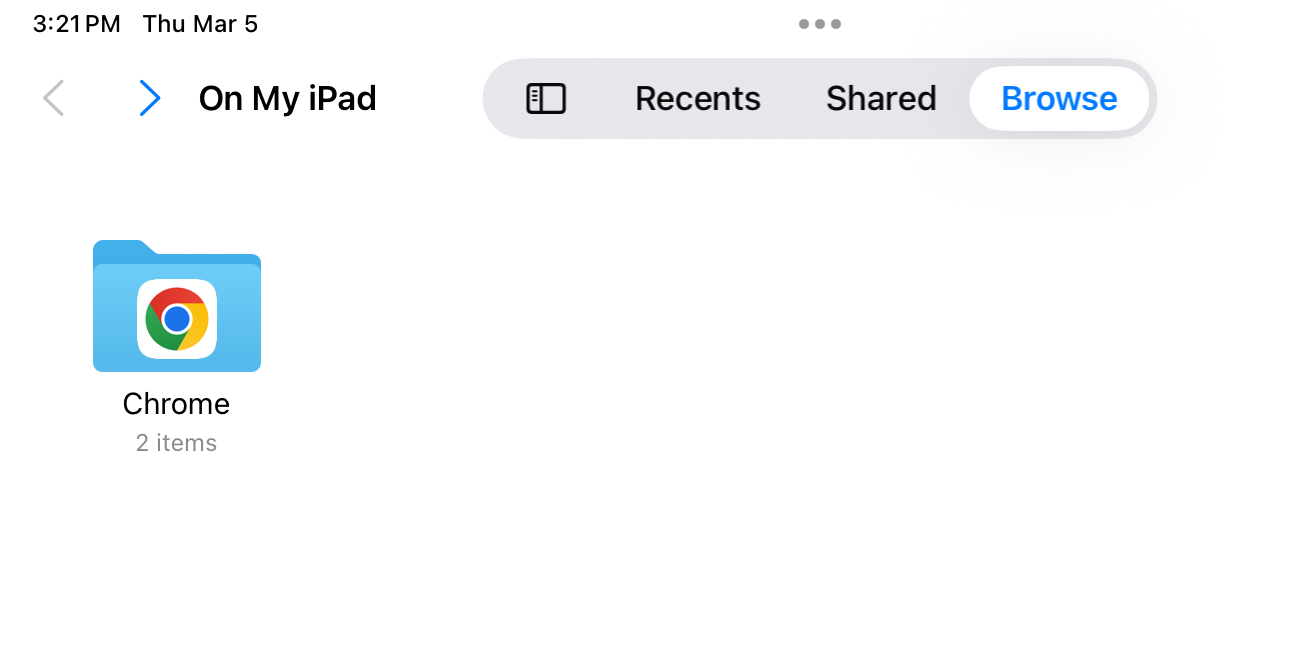
- In the "On My iPad" section, you should see a folder with the title of the browser you were using. In this example, Chrome was being used. Open that folder.
- Press and hold the file you downloaded and select Quick Actions > Markup
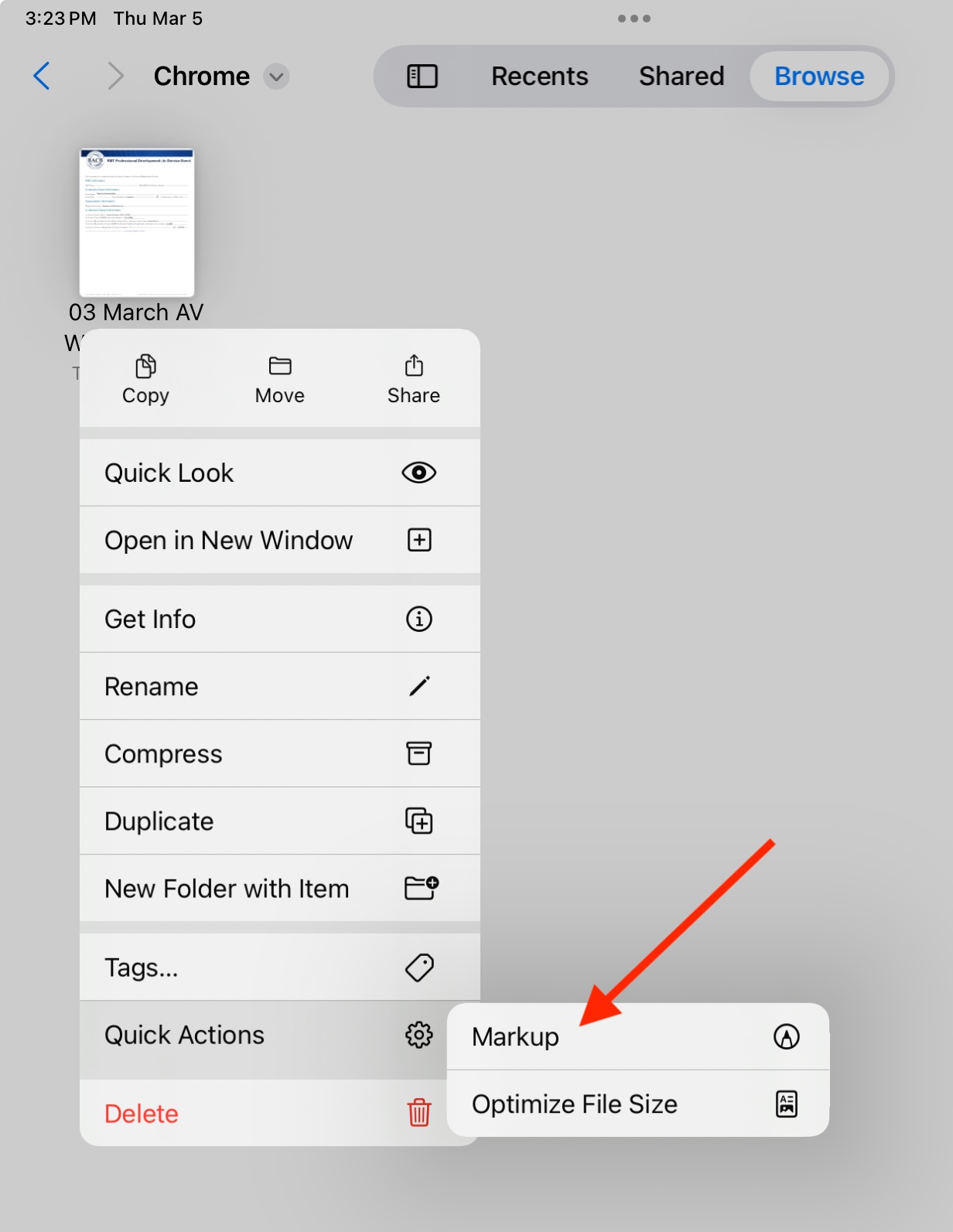
- Once there, select the "Form Filling" icon on the top right of the window.
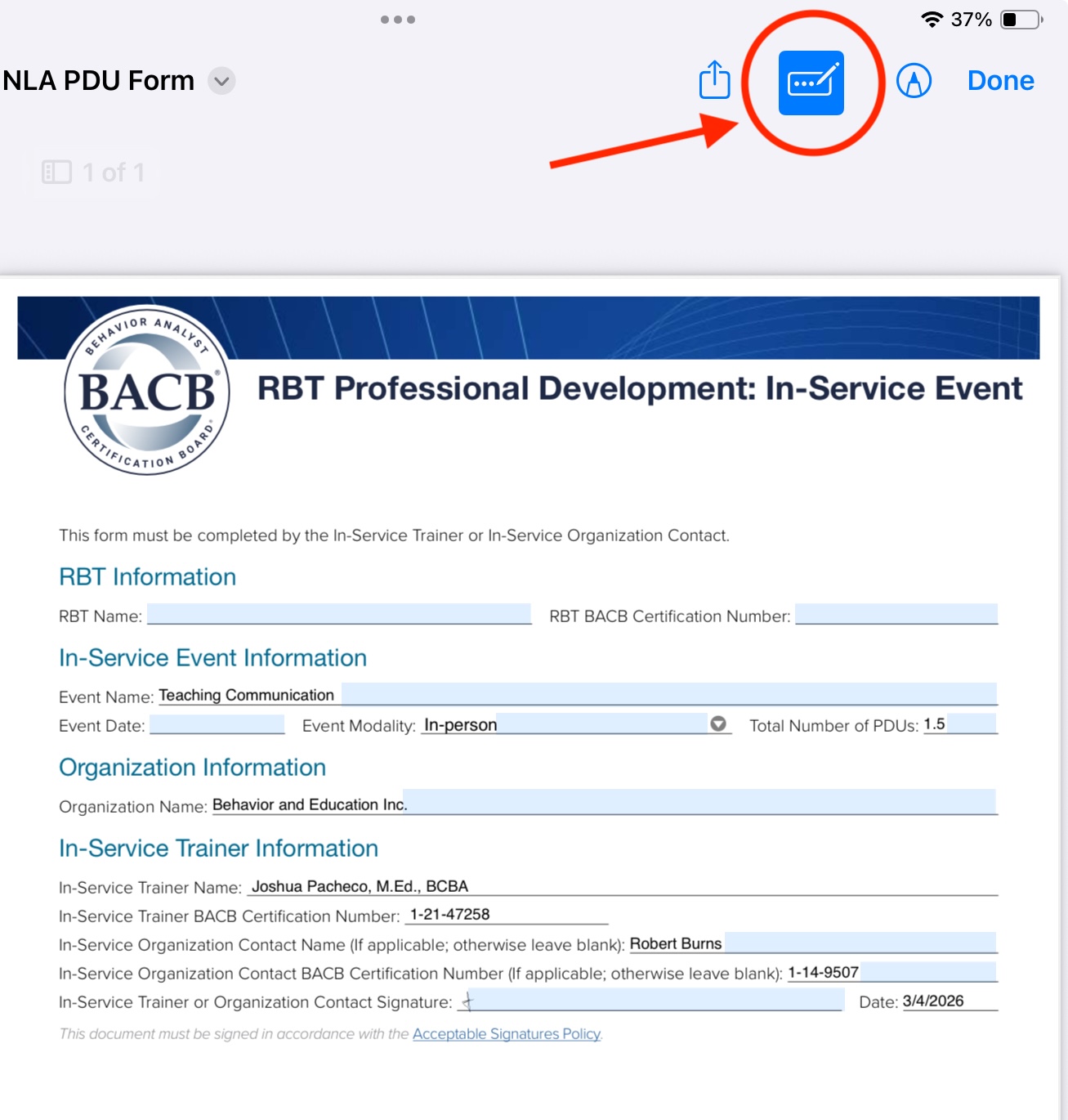
- Fill out each field.
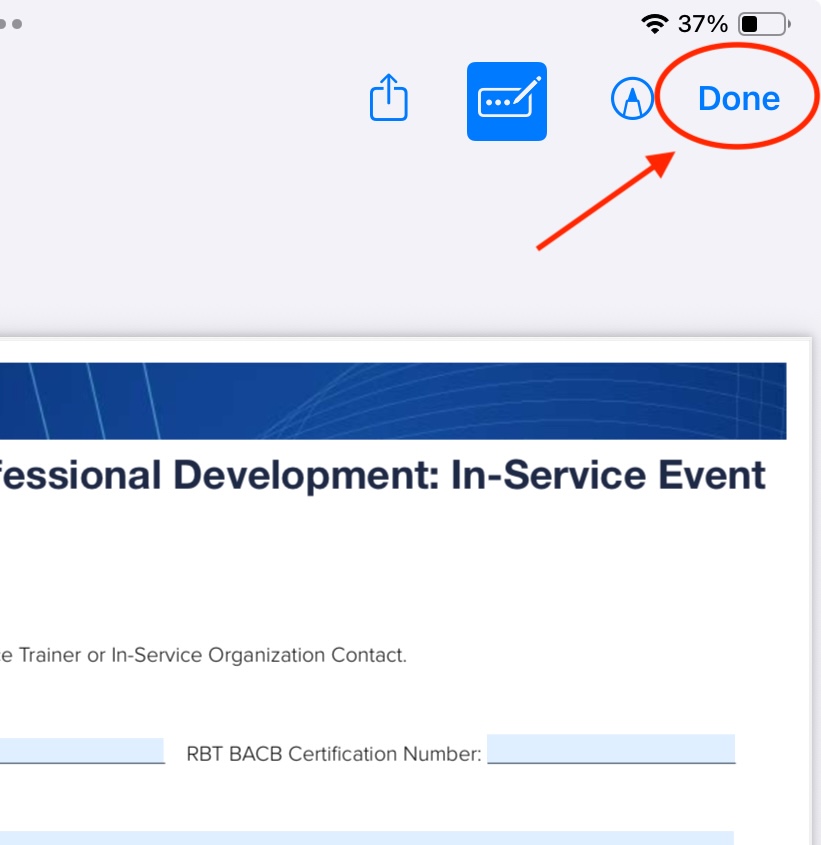
- Once completed, select Done on the top right of the screen
- During the staff meeting, you will be able to turn in the completed form.
- A QR code will be presented during the staff meeting to upload the PDF file. PLEASE BE SURE to upload the PDF file only. Do not take a screenshot or photo of the completed form.
- You can also upload the completed form using this link: https://forms.office.com/Pages/ResponsePage.aspx?id=DNrbt-PU9Uy3OYk6x3RULRDyE7jC7kdMoJU85Q0r9ElURVhKUFEzRlk4MktLNlBEOUhPVTNDQUhGWCQlQCN0PWcuScan
- Once loaded, please fill out the required information.
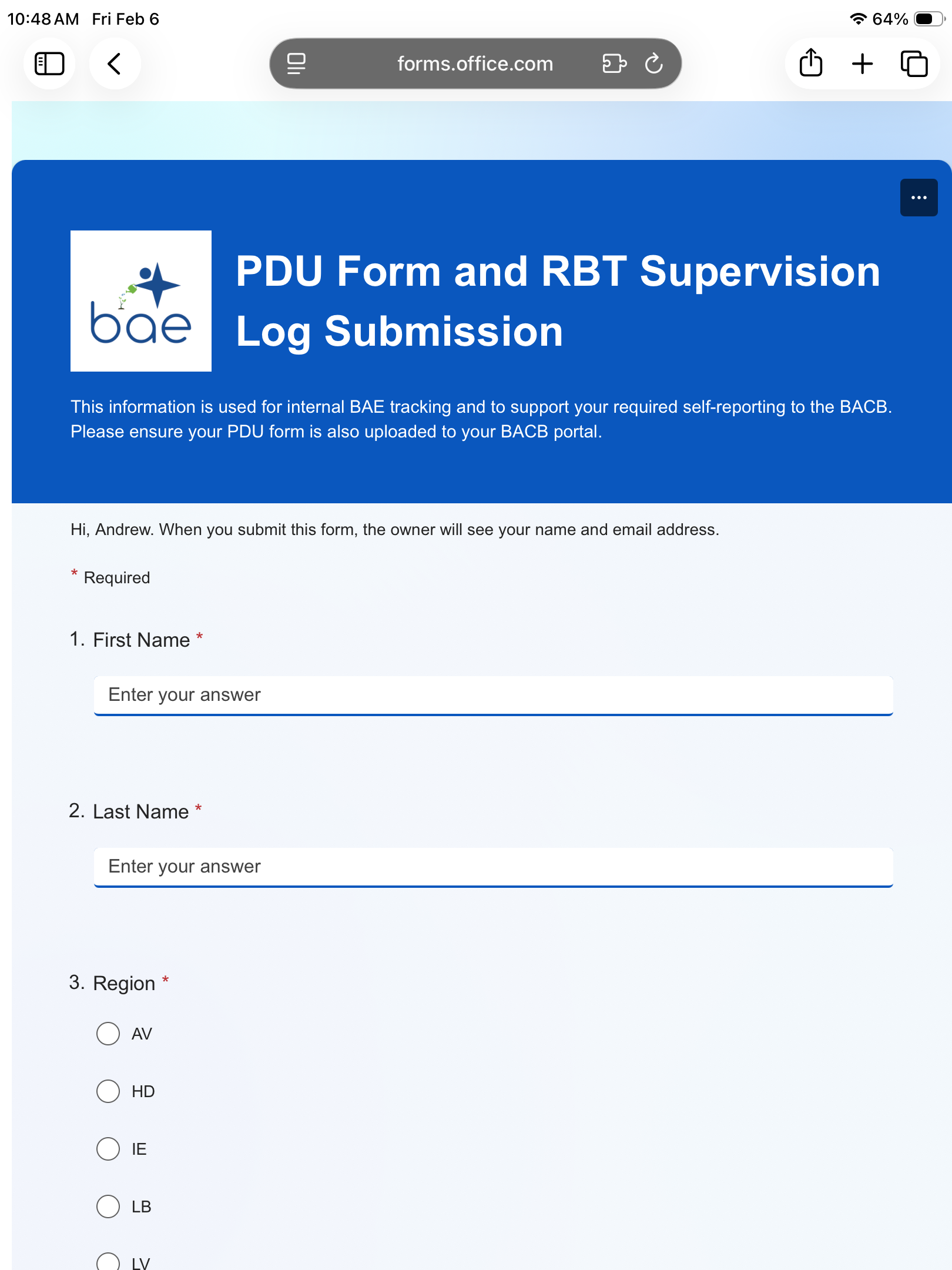
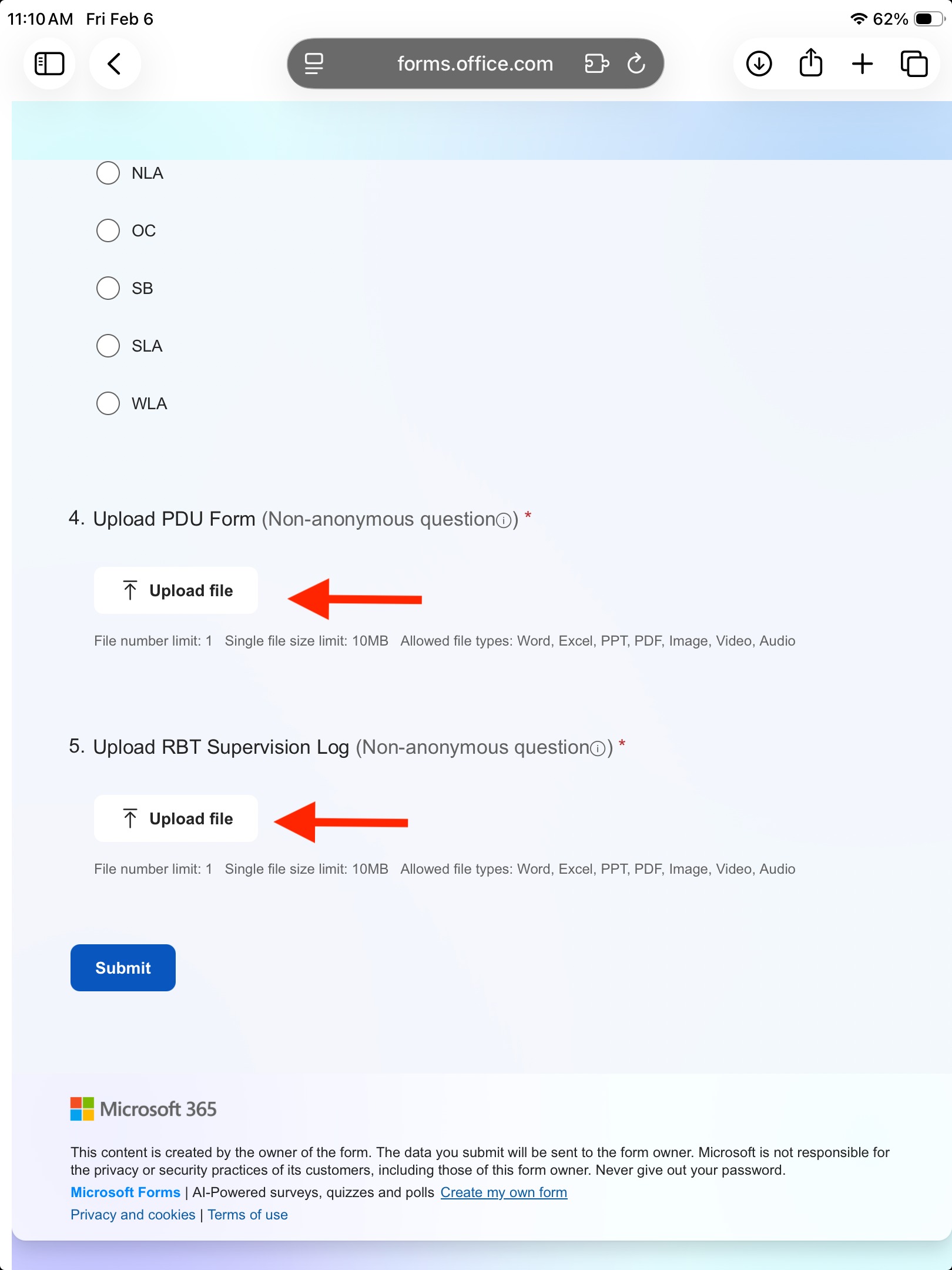
- Once the information has been filled out, please select Upload File for both PDU Form and RBT Supervision Log.
- If you are uploading a saved file already on your device:
- Select Upload File
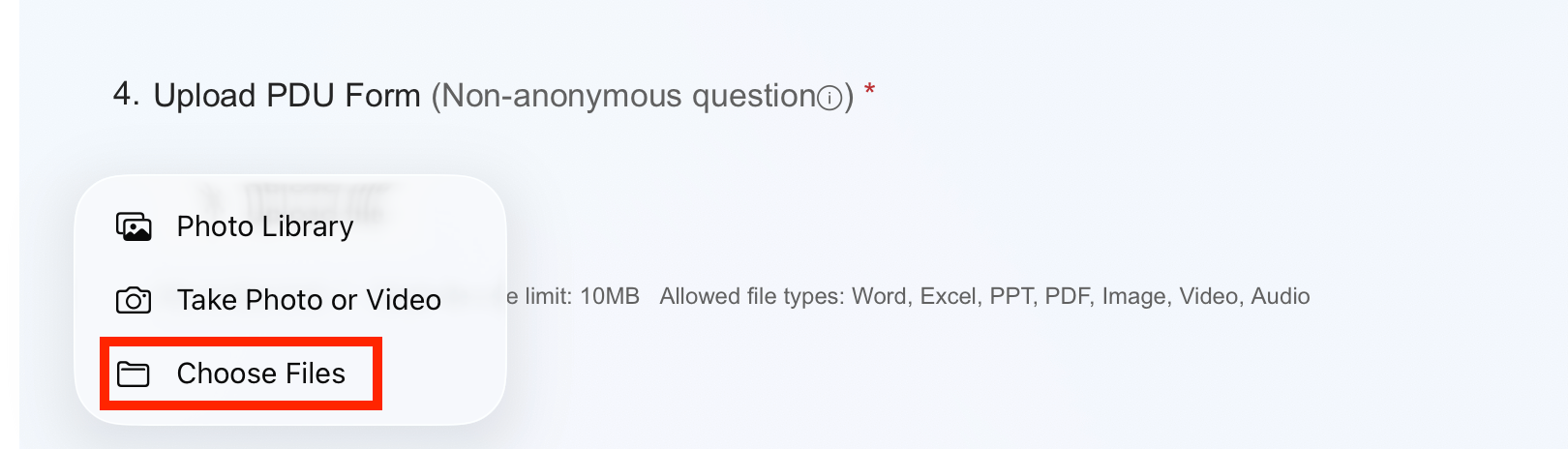
- Select Choose Files
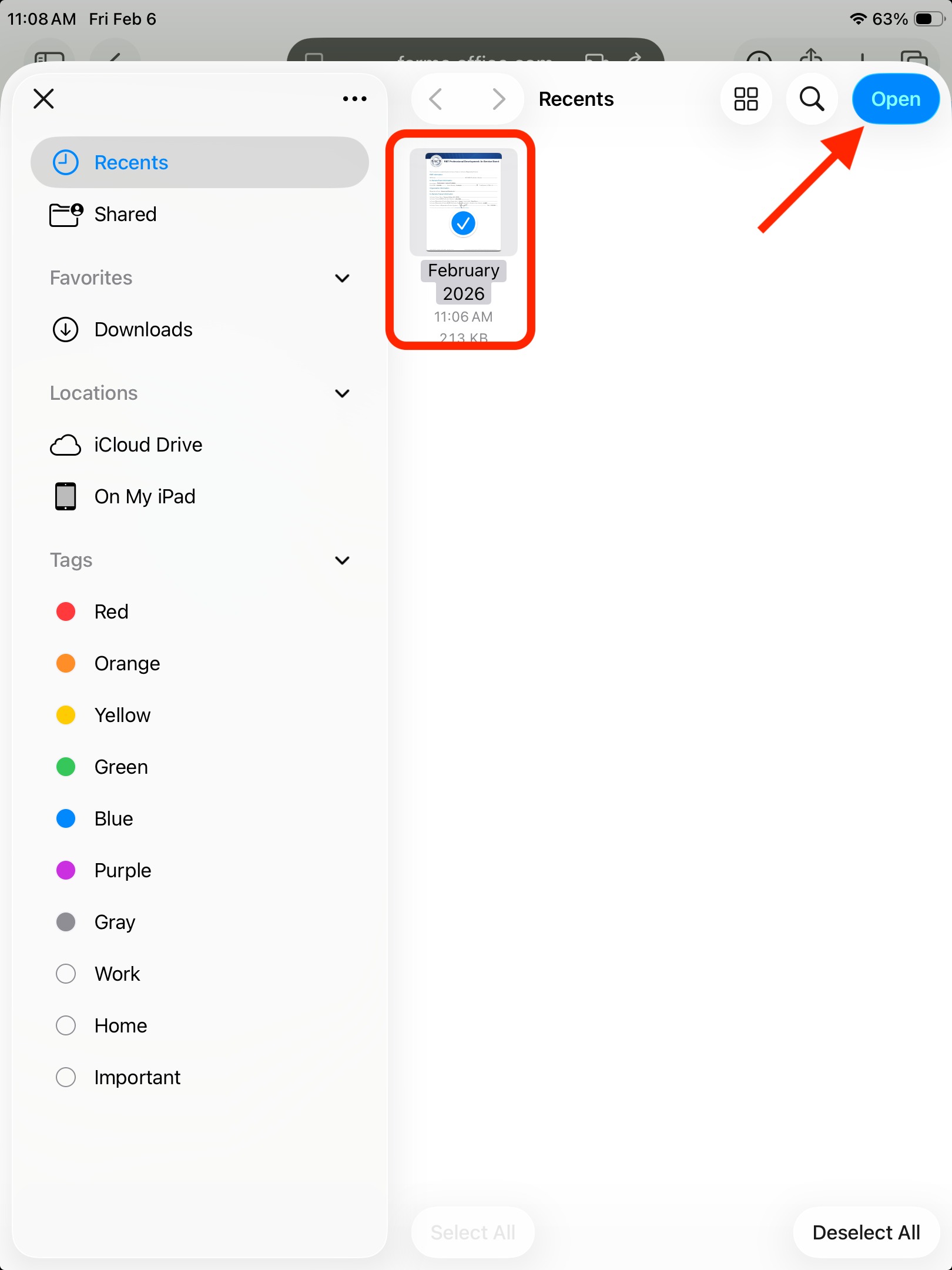
- A new window should pop up showing you your Recent files. Choose the required file and select Open.
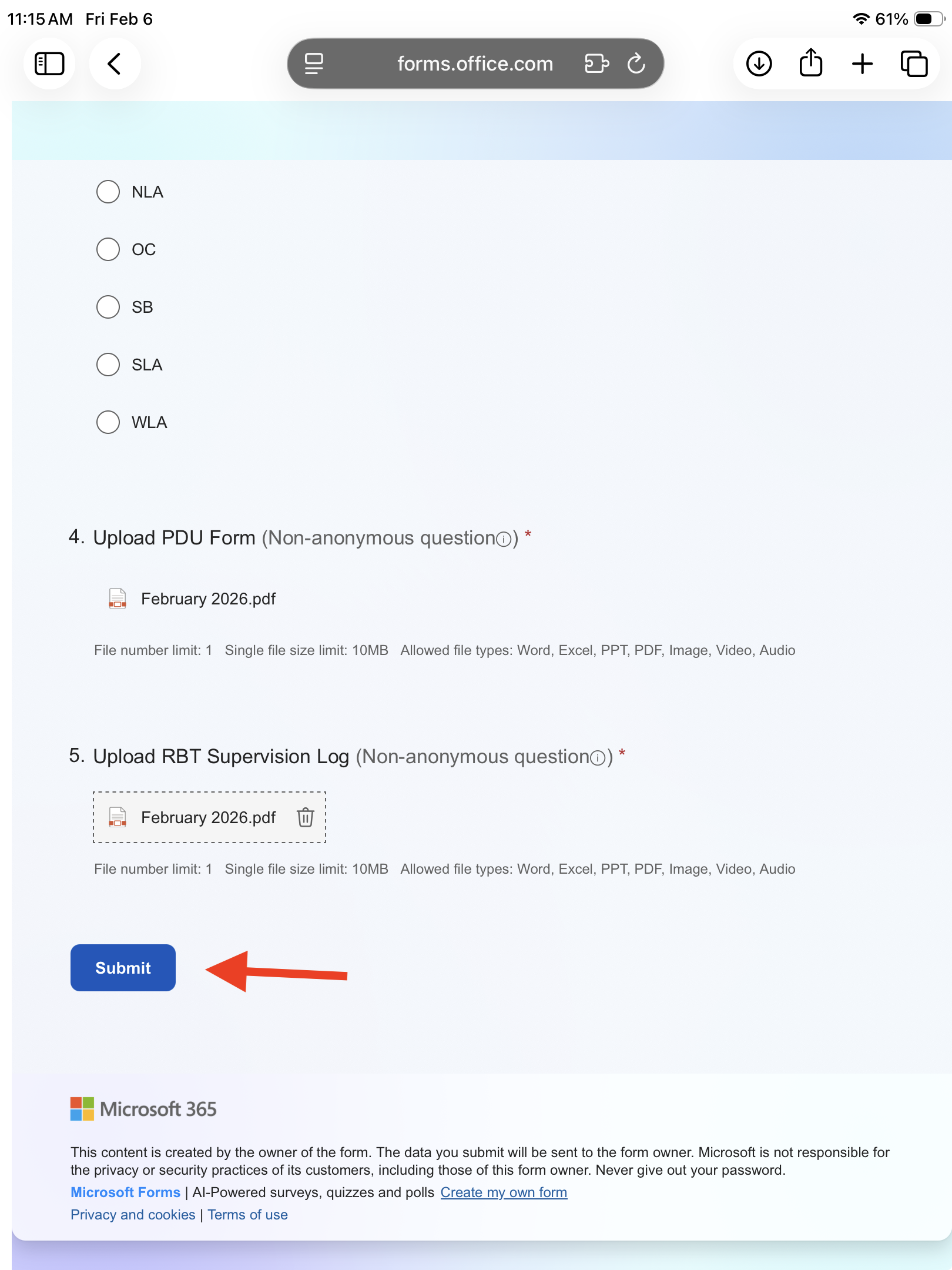
- Once both files have been uploaded, select Submit.
- Select Upload File
- If you are uploading a saved file already on your device:
Please reach out to Support@baetherapy.com if you have any technical issues.